
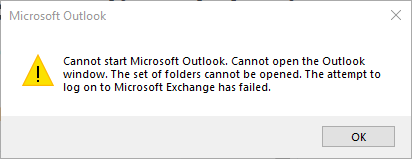
Are you receiving the error below? Please follow these instructions.
Go to the Start Menu and type in Control. You will see an icon named Control Panel. Open it up.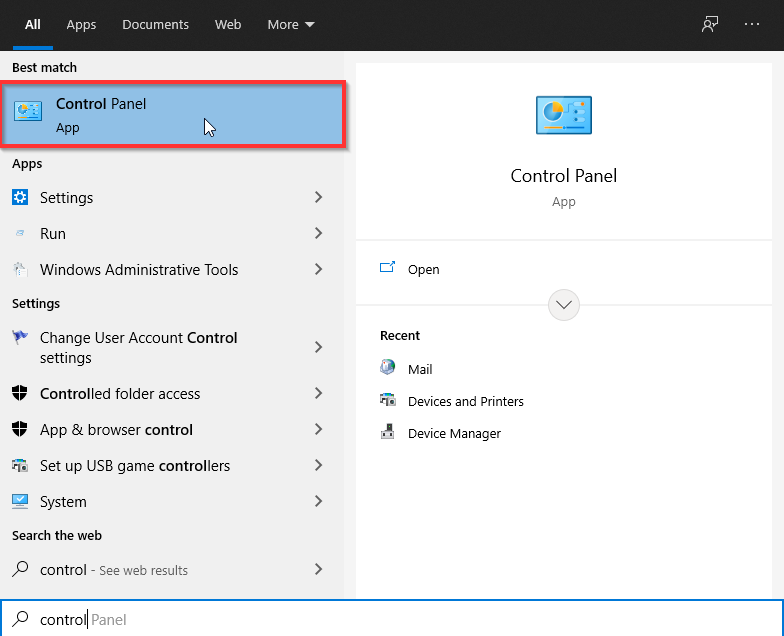
In the Control Panel click on the Mail icon.
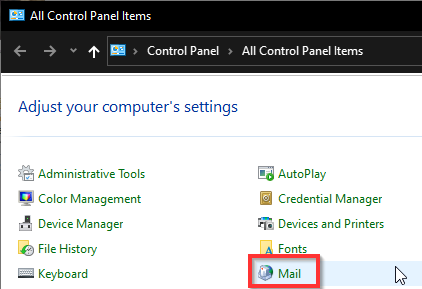
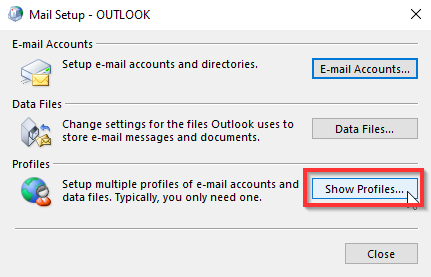
Once you have Mail open click on Show Profiles....
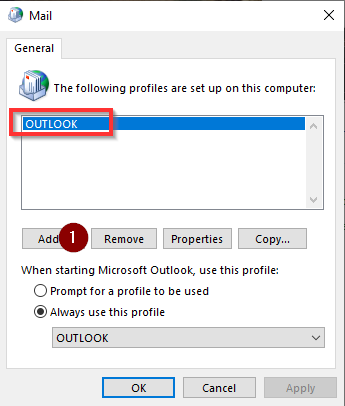
When you see your profile select the top one, click Remove.
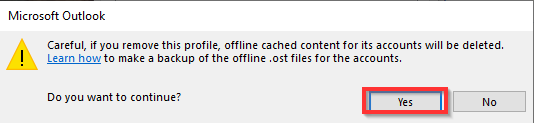
You will receive the message below. Click Yes.
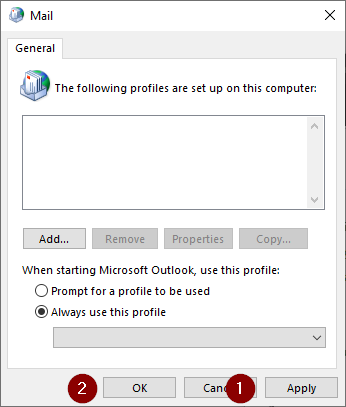
Next click on Apply then OK.
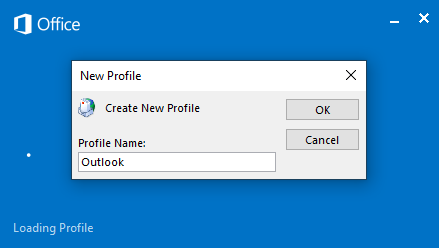
Now launch Outlook and you will receive the message below. Name your new profile what ever you want then click OK.
At the next screen make sure E-mail Account is selected then click Next.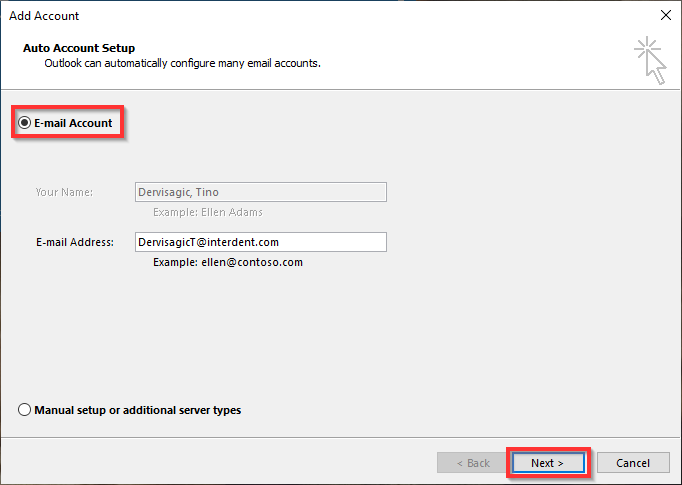
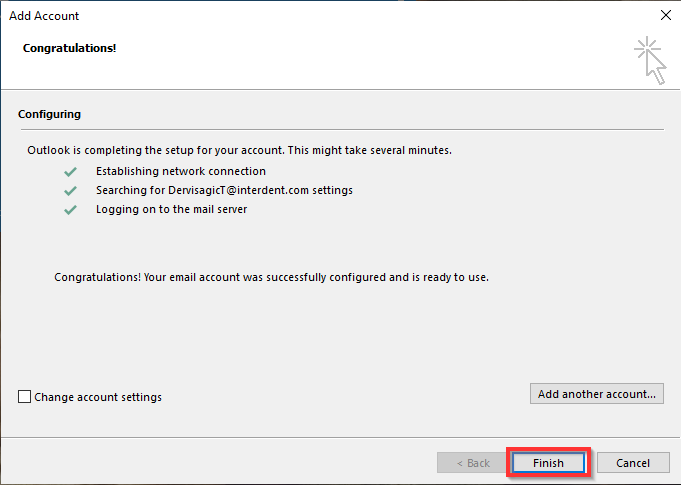
When it is done click Finish.
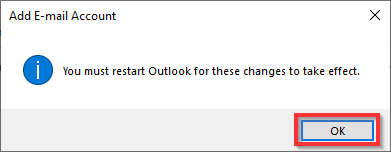
You will the receive this message. Just click OK and Outlook will launch.
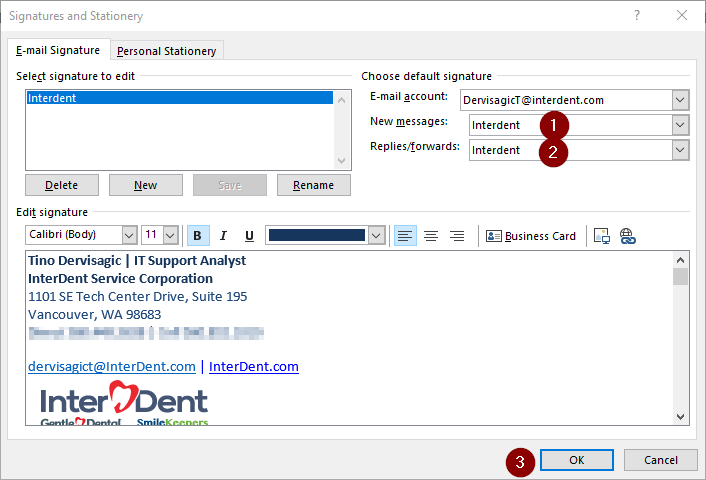
Please note that your signature will not be set to auto apply on new emails.
You will have to re-enable that.
Open you signature settings. Set "New Messages" and "Replies/forwards" to your signature then click OK.
Comments
0 comments
Article is closed for comments.