
Before you start the activation process, you must have already installed the Duo application on your phone from your app store (Google Play/App Store)
Duo Mobile: Confirm this is the Icon of the the application you installed on your phone to allow you to access InterDent Applications and Services.

| Actions to Take | Screen |
|
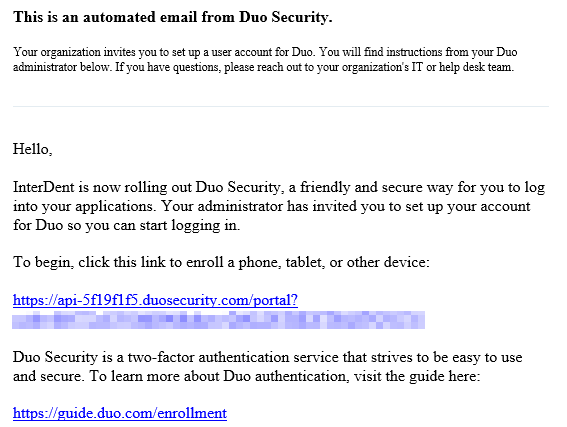
You need to have received this email from "Duo Security" with the subject "InterDent MFA Enrollment" in to proceed. On a workstation, Click on the link to start your activation process. |
SAMPLE EMAIL:
|
| Click Start setup | 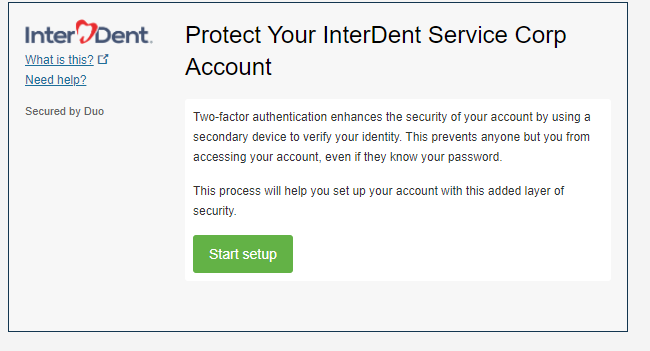 |
|
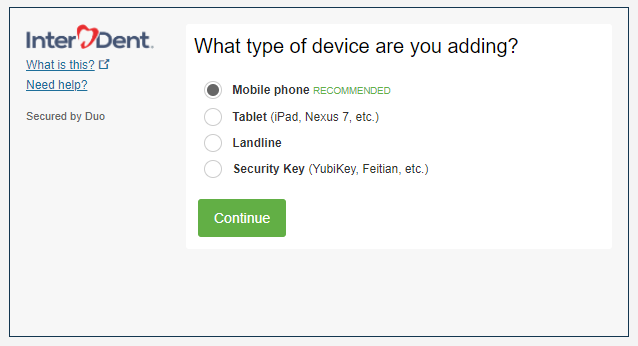
Select the Type of Device you will be using. Mobile Phone is strongly recommend |
 |
| If you Selected Mobile phone, you will be prompted for your phone #. | 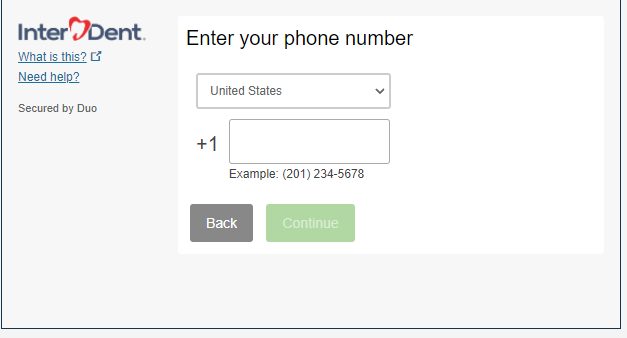 |
|
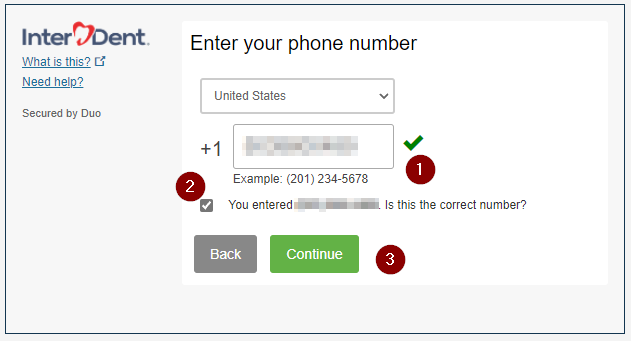
Please confirm your phone number (#1) mark the box it is correct (#2) before you can Continue (#3) |
 |
| Select the type of phone. | 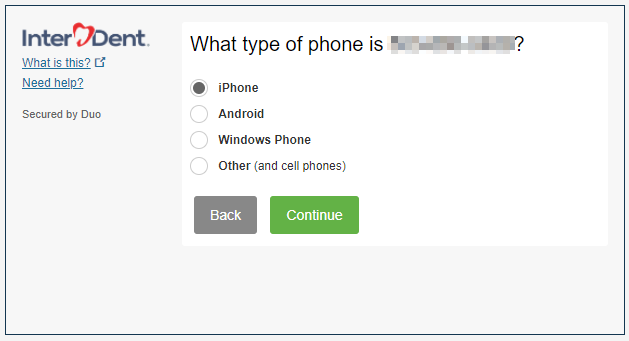 |
| Before proceeding, you must have the Duo Mobile application installed on your phone. | 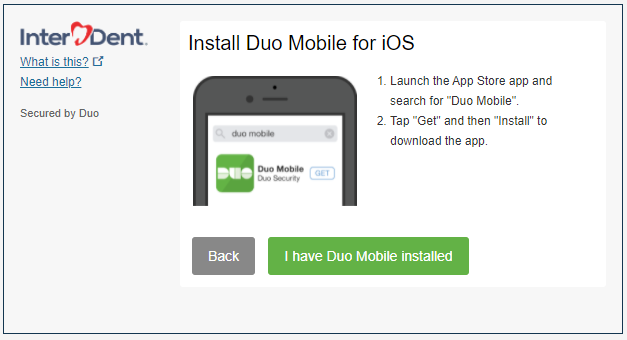 |
|
On a iPhone device: As instructed on the screen, Open the DUO mobile app Tap the "+" button Scan the QR Code. |
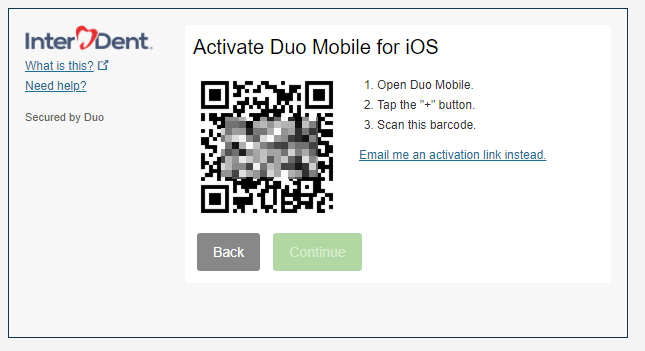 |
|
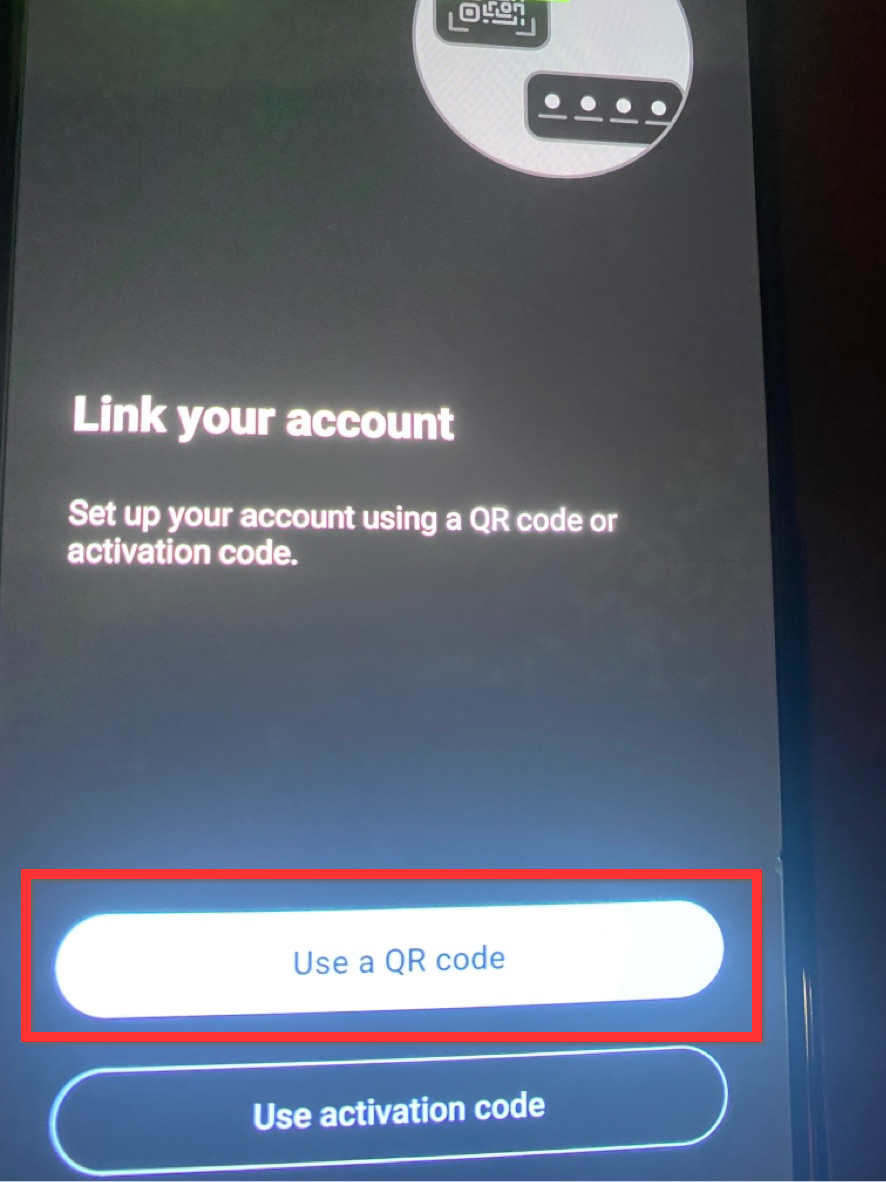
On a Android device: Open the app and select on Set up account. Select Use a QR code. Select which level of access the app should have to your camera. Scan the QR code and you are done. |
|
|
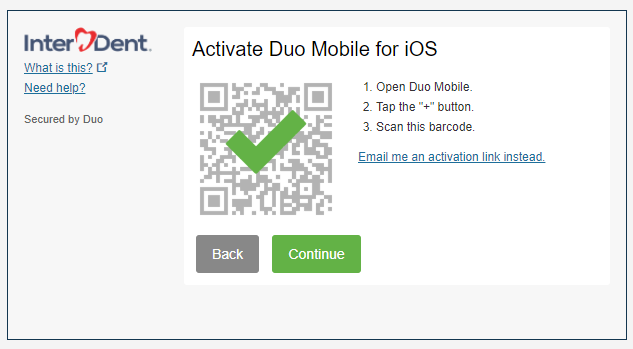
After you successfully activate the Duo Mobile app with your phone number and you see the Green check mark, Click Continue to complete configurating the application. |
 |
|
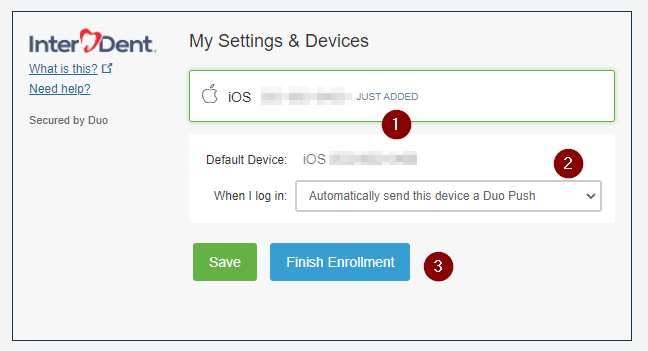
Confirm the phone # is correct Select the "Automatically send this device a Duo Push" Option. Click Finish Enrollment. |
 |
|
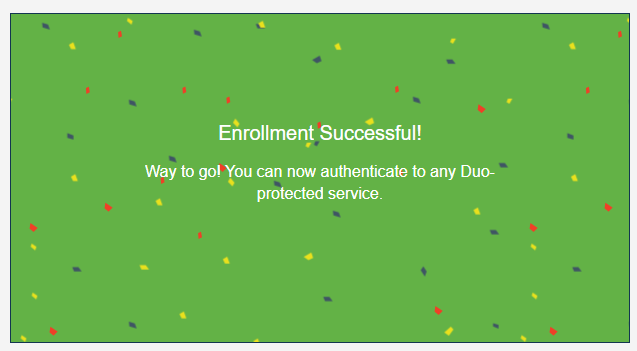
This screen will then appea. Close the browser tab. |
 |



Comments
0 comments
Article is closed for comments.